
An Impact Case will display all of the information that has historically been entered into the case.
To review an impact case, navigate to the Dashboard or Impact Cases tab and click on the impact case number. Once the impact case number is selected, the impact case will display. The impact page will contain the Impact Case Details, Case Ledger, Related Impact Cases, and Recent Activity.
Impact Case Details
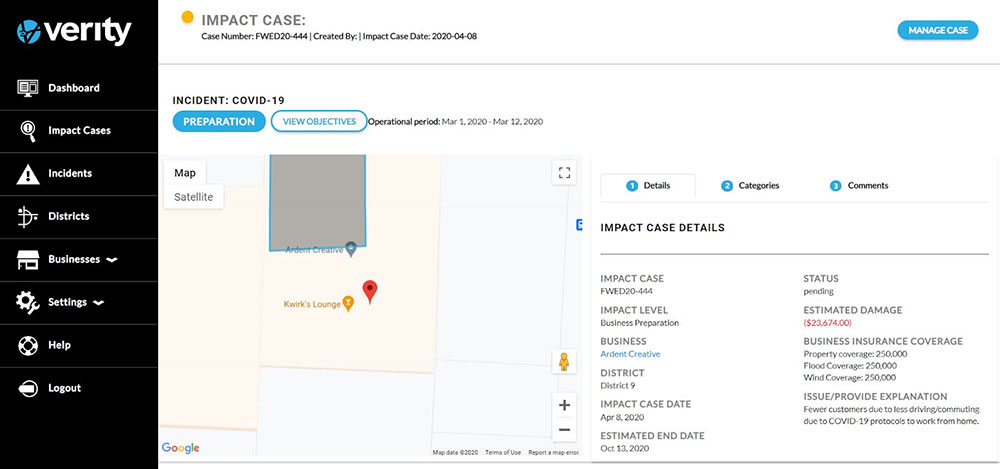
The top of the Impact Case page displays the case status (indicated by a colored dot) with the case number, who created the case, the date of the case, the Manage Case button, the Incident Stage, the View Objectives button, the Operational Period, the business map, and the Impact Case Details.
To the right of the map are the Details, Categories, and Comments tabs.
Details Tab
The Impact Case page defaults to Details, with the Impact Case Details displayed.
Categories Tab
Clicking on the Categories tab will display the categories listed for the case.
Comments
Clicking on the Comments tab will display the comments for the case. Comments are entered by typing the comment in the box and clicking Submit.
Any comments that have been submitted will display the person who entered the comment with the date and time.
Case Ledger
The case ledger entries are made from this page. For more information, see Ledgers.
Related Impact Cases
The Related Impact Cases displays a list of the cases related to the impact case. The cases are related by Impact Level. The columns are sortable by clicking on Case Number, Business, Impact Level, Last Update, or Status.
Recent Activity.
Recent Activity is the activity log for changes made in the Incident, Asset, and Employee fields. The log captures who made the change, the change made, and the date and time of the change.